
Revised October 8, 2026; instructions reflect the current apps.
The best way to view Apple Health on a computer depends on what you want to do there. A spreadsheet is enough for a monthly review. A synced dashboard suits repeated browsing. A database gives you the freedom to build custom analyses, at the cost of more setup.
Apple's Health app is available on iPhone and iPad. Apple's current iCloud feature guide lists Health on those platforms; it does not provide a Health dashboard at iCloud.com or a native Windows equivalent. Signing into iCloud on your computer is therefore not the same as opening your Health charts. Apple's platform guide
You can still use the underlying data on a Mac or PC. The practical routes are to transfer an export or connect an iPhone app that sends selected records to a service you can view in a browser.
I build PulsHealth. The examples below explain its local export, hosted database, and self-hosted viewer so you can choose the amount of setup you actually need.
At a glance
A file for a snapshot. A sync for repeated browsing.
Occasional review
- iPhone export
- Saved CSV
- Spreadsheet on Mac / PC
Create a new export when you want newer data.
Ongoing browsing
- Authorized phone app
- Hosted or self-hosted database
- Browser dashboard
The phone must upload new records; refreshing the browser alone does not refresh the dataset.
Choose the workflow before choosing an app
| You want to… | Useful starting point | What keeps it current? |
|---|---|---|
| Review one month or make a chart | Local CSV in a spreadsheet | You create a new export |
| Browse trends regularly without operating a server | Hosted browser dashboard | An authorized phone app syncs to the service |
| Keep the database on infrastructure you control | Self-hosted viewer | Your phone syncs to your server |
| Run custom calculations or combine datasets | Python or SQL | You refresh the input or query a synced database |
These are different ways to get data onto a larger screen, rather than interchangeable versions of Apple's interface. A third-party chart may apply different day boundaries, source selection, or summary calculations.
For occasional analysis, start with a local file
An export is the shortest path to a useful desktop result. It works on both Mac and Windows, and you can keep the analysis local.
Apple's built-in export creates XML. In Health on the iPhone, open your profile and choose Export All Health Data, then save or transfer it. That gives you structured data requiring a converter or code before it becomes a convenient spreadsheet. Apple's export instructions
Alternatively, PulsHealth's Export tab creates CSV directly from selected HealthKit types and aggregates. It needs no database connection. Choose a small date range and one or two metrics, export, and save the files through the share sheet. Our CSV and Excel guide walks through the complete workflow and includes a synthetic practice file.
On a Mac, transfer the saved file using an appropriate sharing destination such as AirDrop or a folder you can access from the computer. On Windows, use a file-transfer or storage method available on both devices. If that destination is cloud storage, the exported file becomes a copy held by that provider. A local export and a cloud transfer are separate decisions.
Open the CSV in your spreadsheet tool, retain the original file, and save your charts in a separate workbook. Keep a note of the export range and time zone. Next month, you can repeat the same export and compare like with like.
The tradeoff is freshness. A chart made from a September file remains a September chart until you supply new data. Nothing is broken when it does not update by itself.
For regular browsing, use a synced browser dashboard
A dashboard removes the repeated file-transfer step. The data still needs to travel from HealthKit on the phone to the dashboard's database. Giving a website your Apple Account credentials is not the PulsHealth connection process.
For the hosted PulsHealth database, begin at the access page. Access is managed through requests and invitations, so submitting the form should not be understood as a promise of immediate access.
There is a release distinction to keep in mind. As of this revision, the App Store's version 1.6 listing documents export and connection to a configured database, but still describes the product as having no hosted cloud. The current source adds a hosted sign-in flow. Do not assume your installed version has a Sign In to PulsHealth button.
After receiving access, use the pairing instructions supplied with your account. Builds with the hosted flow expose it under Sync → Database; the documented manual alternative uses the database's pairing code or connection fields. Review the destination and save the connection, then choose the types to sync and grant the relevant Health access. Check progress before signing in to the viewer on your computer.
Pairing prepares the connection; it is not applied until you save it. The phone's chosen data is then stored in the hosted database. This is different from the Export tab, which creates files without sending them to that database. The app and backend source documentation describes both workflows. Follow the access instructions for the version you actually have.
The viewer brings activity rings, metric trends, and workouts into a browser. Initial history can take time to arrive, especially with years of records. Check that the time range you want has actually synced before interpreting an empty old chart as a period without measurements.
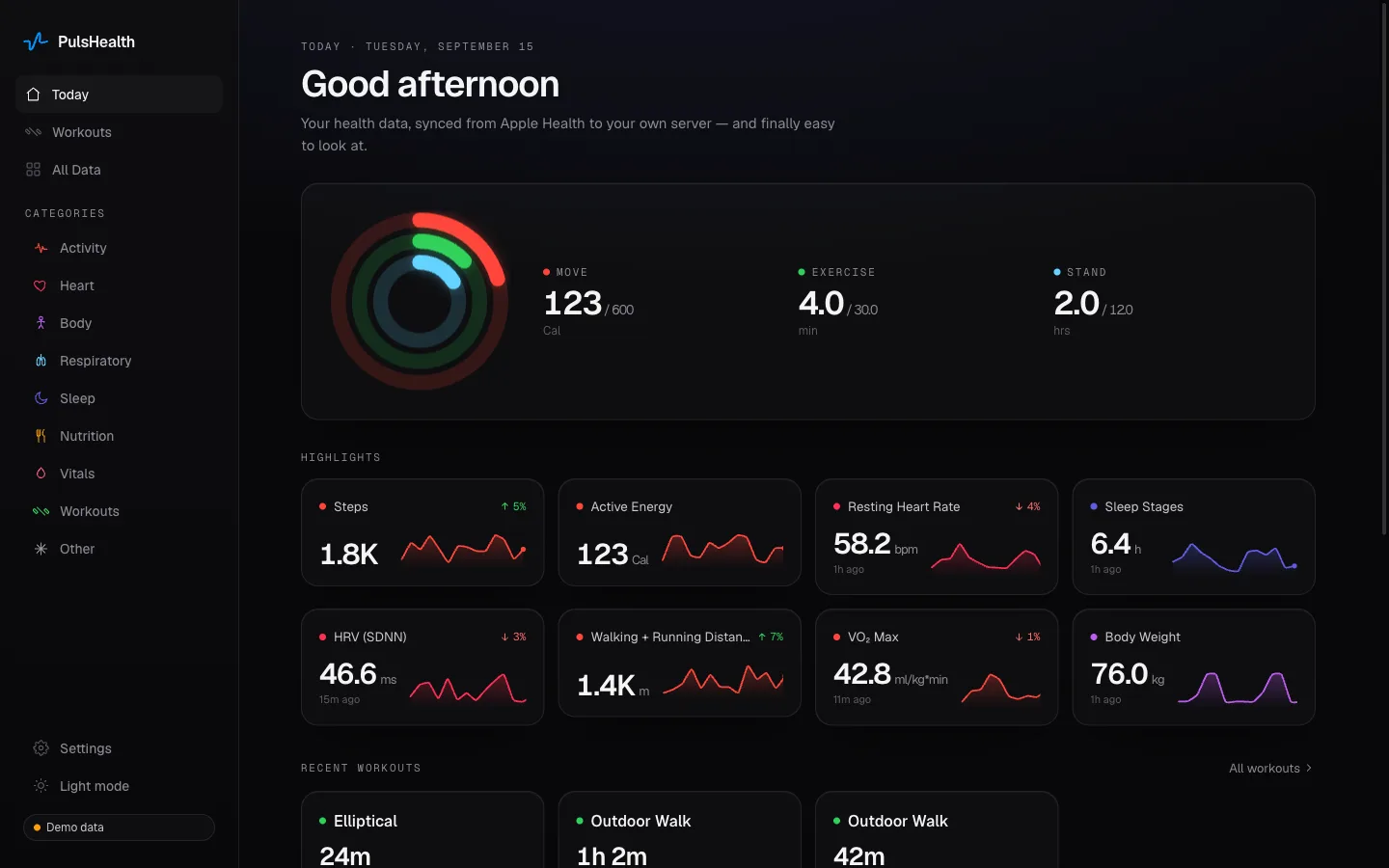
Start with the date above the rings and the timestamps on the metric cards. A filled dashboard still needs a freshness check.
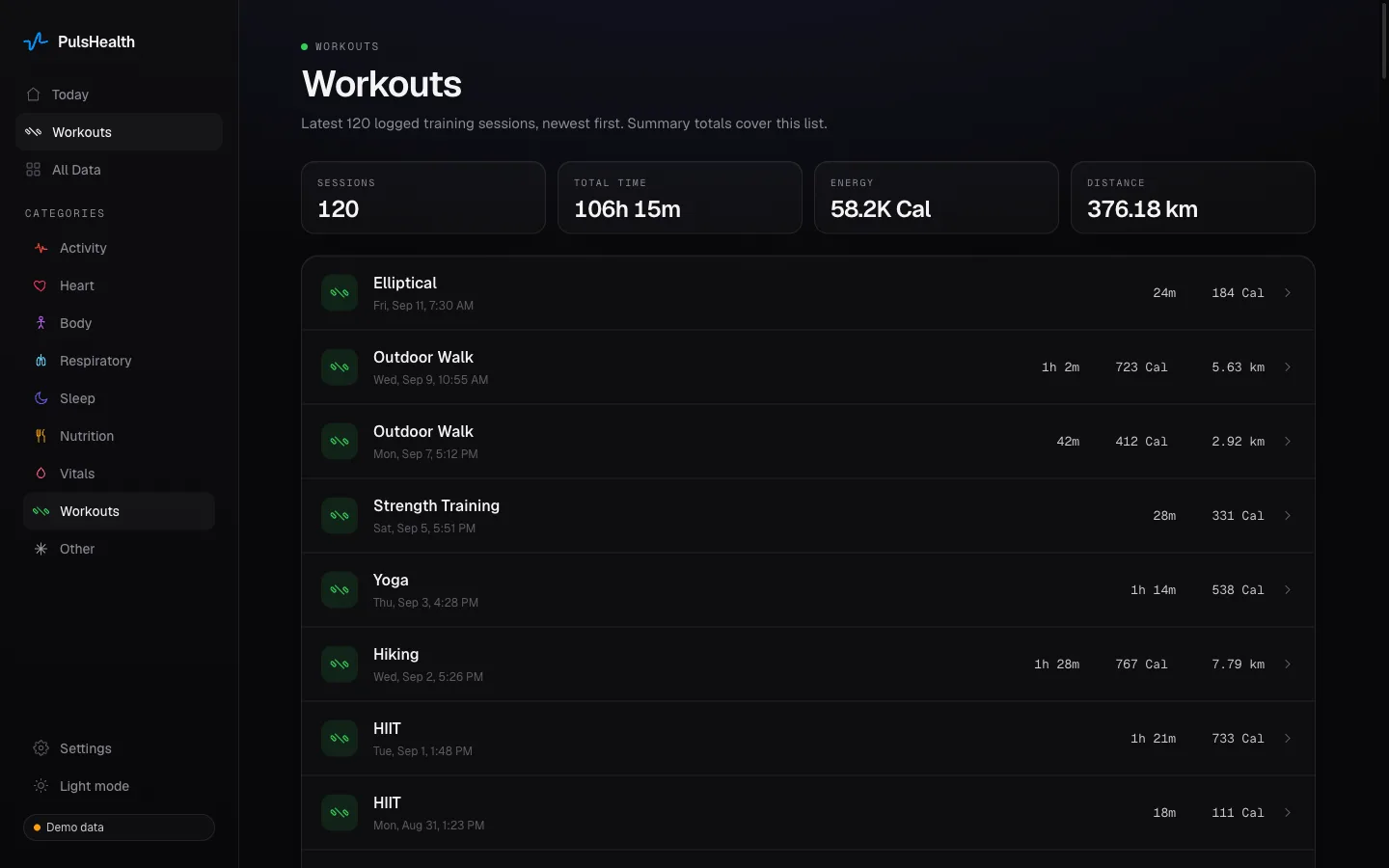
For a workout review, read the list scope before comparing totals. Open a session when you need its detail, and distinguish recorded sessions from days on which you exercised.
For control over storage, self-host the viewer
Self-hosting uses the same basic path—phone, database, browser—but you operate the destination. The reference PulsHealth stack includes PostgreSQL with TimescaleDB, ingest, a product API, a web viewer, and Grafana. It is pre-release software and assumes comfort with Docker and server maintenance.
Follow the maintained self-hosting setup rather than copying an aging installation command from a blog. The web viewer guide covers its configuration and access modes.
The broad sequence is to start the stack, pair the phone with your database, apply the connection, select the data to sync, and open the viewer from a computer that can reach it. Your Mac or PC can be a browser client; it does not have to host the database itself.
“I control the server” also means “I control its access and recovery.” Keep database ports private, configure appropriate authenticated access before exposing the viewer, and set up backups. PulsHealth's self-hosted backups are opt-in. A working dashboard does not prove that its database can be restored.
If your main goal is a few monthly charts, those responsibilities may outweigh the benefit. If you want recurring SQL analysis or custom Grafana panels, a database is a much more useful foundation than a folder of exports.
What about iPad and iPhone Mirroring?
If the real need is a larger Apple-native Health view, an iPad may already solve it. Apple supports Health on iPad and describes how health information is kept available across supported devices. Apple Health overview
On supported Macs, iPhone Mirroring can provide access to phone apps from the desktop, subject to Apple's device, software, and regional requirements. That is a phone interface accessed from a Mac, not an exported dataset or a separate desktop analytics system. Verify that the specific Health screen you need works with your versions before depending on it; this article is not a device-tested mirroring walkthrough. Apple's mirroring guide
Mirroring is worth considering for a quick glance. A file or dashboard is more useful when you want spreadsheet calculations, saved analyses, or repeated comparisons across long time ranges.
Check these things before trusting a desktop chart
Identify the last measurement, not just the last page refresh. A browser page can reload successfully while the phone has not uploaded newer data. Check the latest record and the app's sync status.
Match the time range and time zone. Midnight in UTC may still be the previous local evening. In a self-hosted PulsHealth stack, the server's configured time zone needs to match the phone's for daily summaries.
Compare the same kind of value. A daily HealthKit aggregate, a raw-sample sum, and an activity-ring total are not interchangeable. If steps disagree, use our step-count troubleshooting guide before deciding which chart is wrong.
Confirm the right data was selected and readable. An empty chart might reflect permissions, an unselected type, limited history, or an unfinished backfill. Those require different fixes.
For a first session, choose one question: “How many workouts did I record last month?” or “Which days have sleep data?” Answer it with a small export. If you find yourself repeating the exercise, a synced viewer becomes an easier decision. For questions that need more than the available charts, continue with Python analysis.